Overview
BB TraderX connects fiat and crypto funding to automated trading on Hyperliquid. When you fund your account, you choose MoonPay on-ramp or an on-chain crypto deposit into a dedicated wallet we create for you, then trade through a Hyperliquid account provisioned automatically. You can export your wallet keys at any time. When you are ready to exit, withdraw through Hyperliquid — with in-app withdrawals and MoonPay off-ramp planned for the future.
- 1
Fund your account
Use MoonPay on-ramp with a card, or send USDC, USDT, ETH or WETH from Ethereum, Arbitrum, Base, Optimism or Polygon directly to your dedicated wallet.
- 2
Fund with MoonPay
Enter your deposit amount and complete checkout on MoonPay using your preferred payment method.
- 3
Receive USDC in your wallet
Purchased or transferred USDC is delivered to your dedicated Arbitrum wallet. BB TraderX encrypts and stores key material server-side; you can export keys from Settings.
- 4
Connect to Hyperliquid
Your wallet is linked to a Hyperliquid account we create for you. Funds are available for perpetual trading on Hyperliquid.
- 5
Follow or create strategies
Browse Published Strategies on Explore and follow one, or build and run your own in My Strategies.
- 6
Deposit again anytime
Add more capital through MoonPay on-ramp, send crypto directly to your wallet, or deposit crypto straight to Hyperliquid using your exported keys.
- 7
Withdraw when ready
Log into your Hyperliquid account with your wallet to move funds out. Future releases will add in-app withdrawals and MoonPay off-ramp where supported.
Fund with MoonPay
MoonPay is the card and bank on-ramp built into BB TraderX. It lets you buy USDC with familiar payment methods without leaving the platform flow. Already hold crypto? Use the on-chain deposit path instead. (Off-ramp — selling crypto back to fiat — is covered in the Withdrawing funds section.)
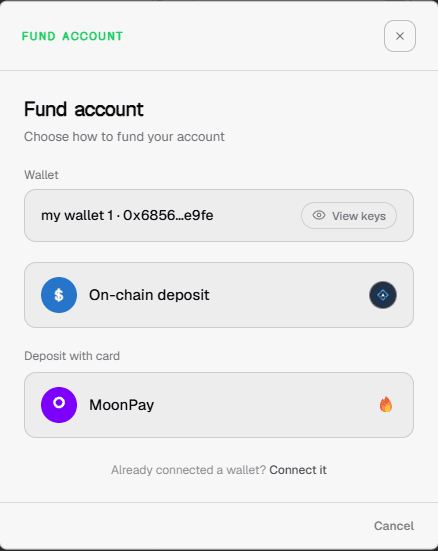
- Open the funding flow from onboarding or from Exchanges → Fund account.
- Select MoonPay as your deposit method.
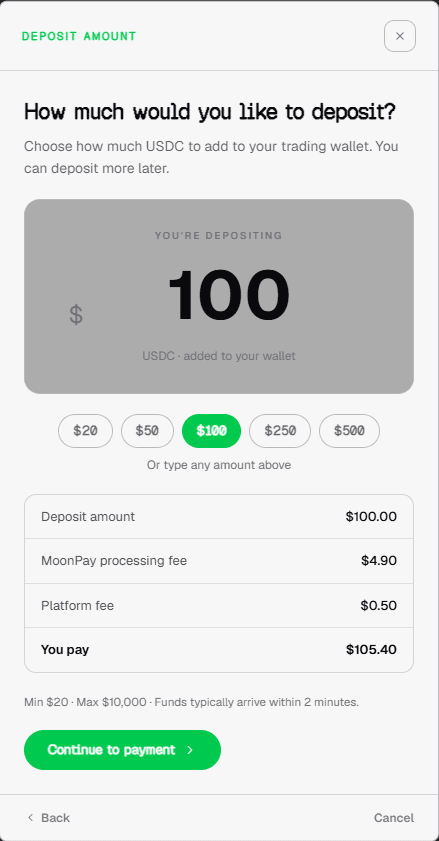
- Enter the USDC amount you want to add to your trading wallet. Preset amounts are available, or type any value within the allowed range.
- Review the fee breakdown — deposit amount, MoonPay processing fee, and platform fee — then continue to payment.
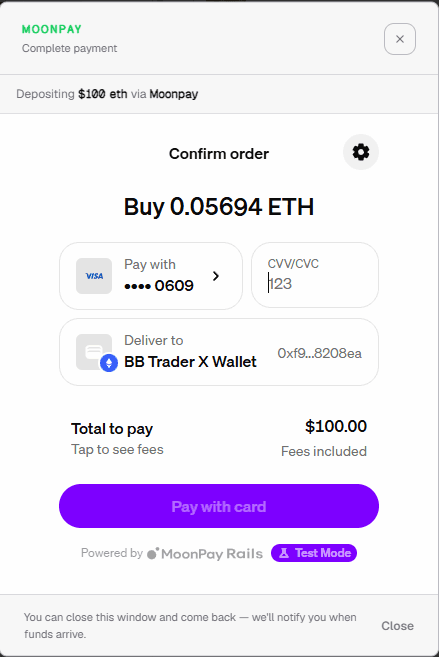
- You are redirected to MoonPay to complete identity verification (if required), enter payment details, and confirm the purchase.
- MoonPay may show that verification is pending or that payment is unavailable in your location — eligibility is determined by MoonPay based on your jurisdiction.
- After MoonPay confirms the transaction, USDC is sent to your dedicated wallet address. Funds typically arrive within a few minutes.
| Detail | Value |
|---|---|
| Minimum deposit (MoonPay) | $20 USD |
| Maximum deposit (MoonPay) | $10,000 USD per transaction |
| Estimated MoonPay processing fee | 4.9% of deposit amount (shown pre-checkout) |
| BB TraderX platform fee | $0.50 USD flat |
| Asset received | USDC on Arbitrum One |
| Typical settlement | Within ~2 minutes |
| KYC / eligibility | Performed by MoonPay inside checkout widget |
Fee transparency
Before you leave for MoonPay, BB TraderX shows your deposit amount, an estimated MoonPay processing fee (4.9%), and a $0.50 platform fee. The final amount you pay is confirmed by MoonPay at checkout and may differ slightly from the estimate.
On-chain deposit (crypto)
If you already hold USDC — or want to avoid card fees — you can fund your BB TraderX wallet directly. No MoonPay checkout required. Send USDC, USDT, ETH or WETH from any exchange or self-custody wallet on Ethereum, Arbitrum, Base, Optimism or Polygon. Anything that isn't USDC is converted to USDC for you; USDC on Arbitrum is cheapest because it needs no conversion.
- Open the funding flow from onboarding or Exchanges → Fund account.
- Choose On-chain deposit (not MoonPay). Your dedicated wallet is created if this is your first time.
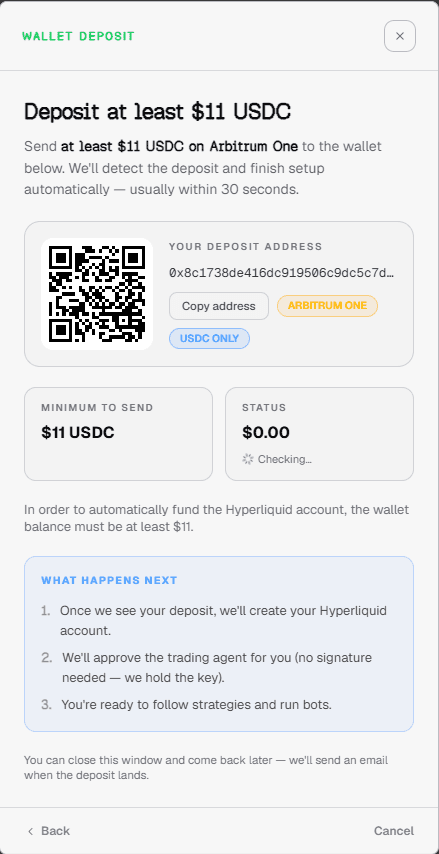
- Pick the token and network you will send from. The screen shows the deposit address and the minimum for that choice.
- Copy the deposit address or scan the QR code.
- From your external wallet or exchange, send that token on that network to that address. A different token or network than the one you picked will not be detected.
- BB TraderX polls your wallet balance automatically — usually within 30 seconds of the transfer confirming on-chain.
- When the minimum is met, status changes to Deposit detected. Click Continue to setup to provision your Hyperliquid account.
| Detail | Value |
|---|---|
| Networks | Ethereum, Arbitrum, Base, Optimism, Polygon |
| Assets | USDC, USDT, ETH, WETH (converted to USDC) |
| Minimum deposit | Shown for each token and network; $11 for USDC on Arbitrum |
| Detection | Automatic — polls every few seconds |
| Typical confirmation | ~30 seconds after on-chain settlement |
Wrong network or token
Send only the token and network you selected on the deposit screen, to the address shown for it. Other tokens or chains sent to that address will not credit automatically. On Polygon, send native USDC; bridged USDC.e isn't accepted. Double-check the network in your sending wallet before confirming.
Under the minimum?
If you send less than the minimum, the app shows how much you sent and how much more is needed. Send the remainder to the same address — no new wallet is created.
After your deposit is detected, setup finishes automatically — your account is connected and ready for strategies. You can close the deposit window and return later; you'll get an email when the deposit lands.
- Send USDC to your deposit address.
- Your account is set up automatically.
- You're ready to follow strategies.
Same wallet as MoonPay
On-chain and MoonPay deposits both credit the same dedicated wallet tied to your BB TraderX account. Use whichever funding method fits your situation — or combine both over time.
Your trading wallet
Every funded account gets a dedicated Arbitrum wallet (BB TraderX-managed). BB TraderX generates your wallet, encrypts the private key and recovery phrase, and stores them server-side. You can export keys at any time using your BB TraderX account password. During first-time setup, BB TraderX may sign Hyperliquid registration and agent-approval transactions on your behalf using the stored key.
- A wallet is created automatically when you open the funding flow — before you choose MoonPay or on-chain deposit.
- MoonPay purchases and on-chain transfers both settle to this same Arbitrum address.
- Your public address is visible during funding so you can verify where USDC will arrive.
- Private key and recovery phrase are encrypted server-side and only shown after you authenticate.
- Unfunded wallets are automatically deleted after 48 hours — fund before the timer expires.
To view or export your wallet keys later, go to Settings → Account → Connected Wallets. Find your BB TraderX-managed wallet and click Keys.
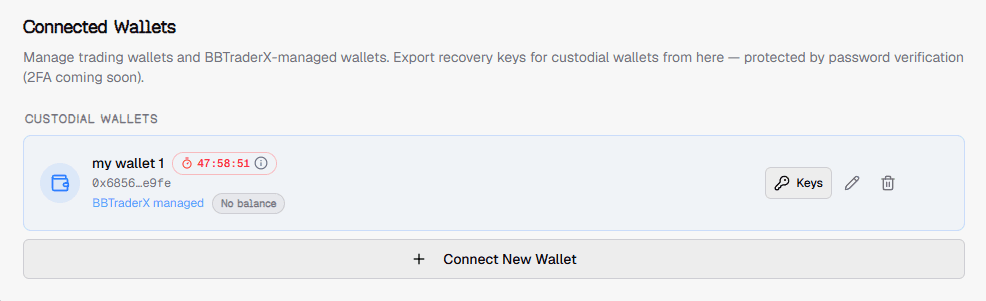
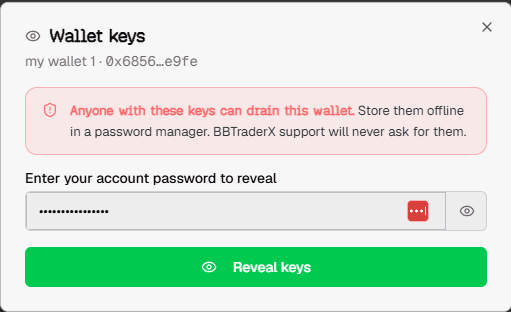
After authentication, you can copy your private key, copy the 12-word recovery phrase, or download a backup file. Import these into any compatible wallet app to access funds outside BB TraderX.
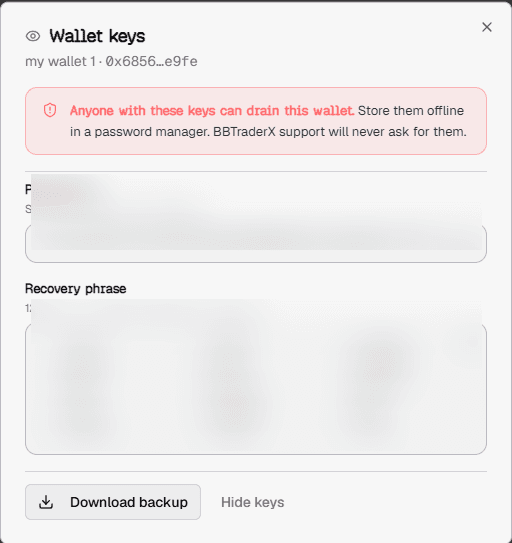
You can also tap View keys during the funding flow to see your wallet address before depositing. Keys always require your account password — BB TraderX never stores them in plain text.
Protect your keys
Anyone with your private key or seed phrase can move funds from your wallet. Store exports offline, never share them, and only reveal keys on a trusted device. BB TraderX support will never ask for your keys.
Hyperliquid account
After your wallet is funded, BB TraderX provisions a Hyperliquid account tied to that wallet address. You do not need to register on Hyperliquid separately — the platform handles account creation, agent approval, and builder-fee setup as part of onboarding.
- Your wallet address is registered on Hyperliquid as your main trading account.
- A trading agent is approved on your behalf. The agent can execute trades for your strategies but cannot withdraw funds.
- A Hyperliquid builder fee is approved (displayed as ~0.025% in setup; up to 0.1% on-chain) so routed orders can execute.
- USDC balances are available as margin on Hyperliquid for perpetual trading after setup completes.
Trade-only agent
The approved trading agent is limited to order execution — it cannot withdraw. For the managed-wallet path, BB TraderX holds the encrypted wallet key and signs setup transactions during onboarding. You can revoke the trading agent from Exchanges at any time.
Start trading
Once your Hyperliquid account is funded and the trading agent is approved, you are ready to trade on BB TraderX.
- Follow Strategies — browse Explore or Published Strategies, pick one, and allocate capital. Its trades are mirrored into your Hyperliquid account.
- My Strategies — build your own strategies that listen for TradingView webhooks, or portfolio / API ensemble strategies that receive orders from your own backend. See the Portfolio / API Ensemble guide for sandbox setup.
- Monitor performance — use Dashboard and per-strategy stats to track PnL, open positions, and trade history.
Your wallet selector in the navbar shows balances across connected wallets and agents. Make sure the wallet linked to your funded Hyperliquid account is selected before following a strategy or turning on one of your own.
Adding more funds
You are not limited to a single deposit. Add capital whenever you want to scale positions or follow additional strategies.
- MoonPay again — reopen Fund account from Exchanges or onboarding, choose MoonPay, and enter a new amount. Each checkout follows the same flow as your first deposit.
- On-chain deposit — choose On-chain deposit in the funding flow, pick a token and network, and send to the address shown. See On-chain deposit (crypto) for the full flow.
- Direct Hyperliquid deposit — export your wallet keys from Settings and import them into a self-custody wallet, or deposit crypto directly to your Hyperliquid account using the address shown on hyperliquid.xyz.
Same wallet, more capital
Repeat deposits — whether through MoonPay or on-chain — always credit the same dedicated wallet tied to your BB TraderX account. No new wallet is created unless you explicitly start a separate connection flow.
Withdrawing funds (off-ramp)
Deposits use MoonPay on-ramp to buy crypto into your wallet. Withdrawals — off-ramp — work differently: your trading agent can execute orders but cannot move money out. Only you, with your wallet keys, can withdraw from Hyperliquid or send funds to an external address.
- 1
Export your wallet keys (if needed)
Go to Settings → Account → Connected Wallets → Keys. Enter your BB TraderX password to reveal your private key or recovery phrase, or download a backup.
- 2
Log into Hyperliquid
Open hyperliquid.xyz and connect with the same wallet tied to your BB TraderX account — import your keys into MetaMask or another wallet app if you use a BB TraderX-managed wallet.
- 3
Withdraw from Hyperliquid
Use Hyperliquid's native withdraw flow to send USDC or other balances to an external crypto wallet address you control.
Available today
Hyperliquid withdrawal is the supported off-ramp path right now. Close or reduce positions on BB TraderX first if needed, then withdraw margin from your Hyperliquid account using your wallet.
Planned off-ramp features
BB TraderX is building additional off-ramp options so you can move funds out without leaving the platform for every step.
- In-app withdrawal automation — send crypto directly from the site to a third-party wallet address you specify, without manually using the Hyperliquid UI.
- MoonPay off-ramp — sell crypto through MoonPay and receive proceeds to a linked bank account or card, similar to how on-ramp works in reverse.
Coming in a future release
These features are on the roadmap and not yet available in production. Until they launch, use Hyperliquid withdrawal with your wallet keys as described above.
Regional availability
On-ramp and off-ramp availability depends on your country. MoonPay determines card on-ramp and (when launched) off-ramp eligibility inside their checkout widget — BB TraderX does not pre-screen countries in the app. On-chain crypto deposits are available globally with no card required.
| Feature | US customers | Rest of world |
|---|---|---|
| MoonPay on-ramp (buy crypto) | Where MoonPay supports your region at checkout | Where MoonPay supports your region at checkout |
| MoonPay KYC | Handled by MoonPay in-widget | Handled by MoonPay in-widget |
| On-chain deposit (crypto) | Available — no card required | Available — no card required |
| Hyperliquid withdrawal | Available — use your wallet on hyperliquid.xyz | Available — use your wallet on hyperliquid.xyz |
| In-app withdrawal (planned) | Planned | Planned |
| MoonPay off-ramp (planned) | Not available | Planned in MoonPay-eligible countries only |
US off-ramp restriction
MoonPay off-ramp will not be offered to US customers. When it launches, sell-to-fiat via MoonPay is intended for rest-of-world users in countries where MoonPay supports sell services. US customers should withdraw via Hyperliquid to a self-custody wallet.
ROW and EU on-ramp
Access to MoonPay card on-ramp in rest-of-world and European markets requires MoonPay's supported-country list and partner approval. If checkout returns "Payment is unavailable in your current location," MoonPay has declined the transaction for that jurisdiction — not BB TraderX independently.
Alternative funding paths
Beyond MoonPay on-ramp and on-chain crypto deposit, BB TraderX supports a few other ways to get started or connect existing capital.
- On-chain deposit — covered in On-chain deposit (crypto). Best if you already hold crypto on a supported network.
- Previously connected wallets — accounts that were linked to BB TraderX with your own Hyperliquid wallet before the unified balance keep working and can be renewed from Settings. New connections are no longer offered; deposits go to your BB TraderX wallet.
- External Hyperliquid deposit — with your exported keys, you can fund Hyperliquid from any source without going through BB TraderX again.
Wallet custody model
BB TraderX provides BB TraderX-managed wallets (referred to in the product as custodial wallets). Understanding this model is essential for legal review, user disclosures, and payment-partner onboarding.
| Topic | How it works |
|---|---|
| Wallet creation | A dedicated Arbitrum wallet is created automatically when the user opens the funding flow — before they choose MoonPay or on-chain deposit. |
| Key storage | Private key and 12-word recovery phrase are generated server-side, encrypted, and stored by BB TraderX. They are not stored in plain text in the browser. |
| User export | Users can reveal and export keys after authenticating with their BB TraderX account password (Settings → Keys), or during a one-time in-flow reveal at onboarding. |
| Onboarding setup signing | For the managed-wallet path, BB TraderX can sign Hyperliquid account registration, trading-agent approval, and builder-fee approval on the user's behalf using the stored key — the user does not sign these steps in-wallet during first-time setup. |
| Trading agent scope | The approved agent may execute trades for bots only. It cannot withdraw funds from Hyperliquid. |
| Fund movement | Deposits (MoonPay or on-chain) land in the user's Arbitrum wallet address. The backend may sweep balances to Hyperliquid as part of connecting the wallet for trading. |
| Withdrawals | Users withdraw by accessing Hyperliquid with their wallet keys (exported or imported into a self-custody wallet). BB TraderX does not offer fiat off-ramp in production today. |
Not a fully self-custodial onboarding path
While users can export keys and BB TraderX does not withdraw on their behalf, the platform generates, encrypts, and retains key material server-side and signs setup transactions during onboarding. Marketing language should not describe this as "non-custodial" or "BB TraderX does not custody your funds" without qualification.
Fees and limits (reference)
The following limits and fees are enforced or displayed in the BB TraderX application. MoonPay's final fiat charge may differ from pre-checkout estimates shown in the app.
| Item | Value | Notes |
|---|---|---|
| MoonPay on-ramp minimum | $20 USD | Per transaction |
| MoonPay on-ramp maximum | $10,000 USD | Per transaction |
| MoonPay processing fee (estimate) | 4.9% of deposit | Shown in-app before checkout; not fetched live from MoonPay |
| BB TraderX platform fee (MoonPay path) | $0.50 USD flat | Shown in-app on deposit-amount screen |
| On-chain deposit minimum | $11 USDC | Arbitrum One; no platform fee on this path |
| Connect existing HL wallet minimum | $10 USDC | On Hyperliquid before agent approval succeeds |
| Network / asset | Arbitrum One (chain ID 42161) | USDC only for managed-wallet deposits |
| Hyperliquid builder fee (UI copy) | ~0.025% | Displayed during account setup |
| Hyperliquid builder fee (on-chain approval max) | Up to 0.1% | Configured via platform builder-fee approval |
| Unfunded wallet retention | 48 hours | Unfunded managed wallets are auto-deleted after 48 hours |
Fee disclosure for checkout
The deposit-amount screen shows deposit + estimated MoonPay fee + platform fee. The MoonPay checkout widget displays the final amount the user pays. Legal copy should clarify that MoonPay sets payment processing terms and final pricing at checkout.
MoonPay KYC and eligibility
BB TraderX integrates MoonPay as a third-party on-ramp provider. Identity verification, sanctions screening, and geographic eligibility are performed by MoonPay inside their payment widget — not by a separate BB TraderX KYC flow before checkout.
- User selects MoonPay and amount in BB TraderX.
- BB TraderX backend creates a signed on-ramp session (POST /api/onramp/session) returning a MoonPay widget URL and/or MoonPay Platform session token.
- User completes payment inside MoonPay's iframe (blocks.moonpay.com). MoonPay may require identity verification depending on amount, jurisdiction, and risk.
- Purchased crypto is sent to the BB TraderX-managed wallet address associated with the session.
| MoonPay widget status | User-facing message |
|---|---|
| pending | Your verification is pending review. Please try again shortly. |
| unavailable | Payment is unavailable in your current location. |
| active / success | Payment completes; funds credited to wallet |
BB TraderX does not maintain its own country allowlist for card on-ramp in the frontend. Eligibility for rest-of-world and European users is determined by MoonPay's supported countries, licenses, and the user's location at checkout. ROW and EU market access for on-ramp requires MoonPay partner approval and alignment between MoonPay's permitted jurisdictions and BB TraderX's go-to-market.
Payment data
Card and bank payment details are collected by MoonPay, not stored in the BB TraderX frontend. BB TraderX receives session status, wallet credit events, and associated account metadata through its backend integration with the on-ramp provider.
In-app user disclosures
The following disclosures are shown to users during the funding flow (exact or near-verbatim from the staging application):
- Key security: "Anyone with these can drain your wallet. Store them in a password manager. Never share, never paste them into a website. BBTraderX support will never ask for them."
- One-time reveal: "This is the only time we'll show the private key and recovery phrase — save them now so you stay in control of your funds."
- Acknowledgment checkbox: "I've saved my private key and recovery phrase somewhere safe. I understand that if I lose them, my funds cannot be recovered."
- Trading agent: "Approving the trading agent (trades only — no withdrawals)."
- On-chain setup: "Your account is set up automatically."
- Success screen: "Your wallet keys are still your responsibility. You can revoke the trading agent any time from Exchanges."
- Wallet deletion: "All funds remaining in this wallet may be permanently lost… this action is irreversible."
- Unfunded wallet timer: "Unfunded wallets are automatically deleted after 48 hours. Fund this wallet before the timer expires."
- Deposit email: "You can close this window and come back later — you'll get an email when the deposit lands." (on-chain path)
- MoonPay close: "You can close this window and come back — you'll be notified when funds arrive."
Platform policies: Terms of Service (/tos, last updated January 22, 2026) includes cryptocurrency risk warnings and requires users to comply with applicable laws. Privacy Policy (/privacy, last updated March 9, 2026) covers account, wallet address, and trading data. Users should review both policies before using funding features.
Disclosure gap (legal follow-up)
The current Terms of Service and Privacy Policy do not explicitly name MoonPay, fiat on-ramp, the $0.50 platform fee, or managed-wallet key storage. Legal counsel should extend those documents for MoonPay partner review and EU/ROW coverage. This documentation describes product behavior; it does not replace updated Terms or a MoonPay data-processing addendum.
Key reveal and wallet lifecycle
- Onboarding reveal — one attempt only. The server sets seedRevealed=true when keys are returned. A second reveal request returns HTTP 410 Gone; users must rely on a saved backup.
- Settings reveal — repeatable after BB TraderX account password verification. User can copy private key, copy 12-word phrase, or download an unencrypted plaintext backup file.
- Unfunded wallets — countdown timer shown in Settings and Exchanges. Auto-deleted after 48 hours if never funded.
- Wallet deletion — user-initiated soft delete. Blocked while a Hyperliquid agent is active. Warning that remaining funds may be permanently lost. Sealed key material may be retained server-side after deletion per backend policy.
- Demo mode — custodial wallet creation and funding flows are disabled.
Connect existing wallet (alternative)
Users who already have a self-custody wallet funded on Hyperliquid can skip managed-wallet creation and link their existing wallet instead.
- From Fund account, choose "Already connected a wallet? Connect it".
- Connect via WalletConnect / MetaMask on Arbitrum.
- User personally signs Hyperliquid ApproveAgent and approveBuilderFee EIP-712 messages — BB TraderX does not hold the key on this path.
- Minimum ~$10 USDC on Hyperliquid required before agent approval succeeds.
Two funding models
Legal and product docs should distinguish the managed-wallet path (keys stored server-side, platform signs setup) from the bring-your-own-wallet path (user self-custody, user signs on-chain).
Flow of funds (summary)
- 1
On-ramp (MoonPay)
User fiat → MoonPay → crypto purchase → BB TraderX-managed Arbitrum wallet address. MoonPay is merchant of record for the fiat leg.
- 2
On-ramp (on-chain)
User USDC on Arbitrum One → BB TraderX-managed wallet address. No fiat processor involved.
- 3
Trading setup
Backend provisions Hyperliquid account, approves trade-only agent, approves builder fee. Balances may be swept from the Arbitrum wallet to Hyperliquid for trading.
- 4
Trading
Signal bots and copy bots execute via approved agent on Hyperliquid. BB TraderX routing fees and publisher commissions may apply per platform terms.
- 5
Off-ramp (today)
User exports keys → Hyperliquid.xyz → withdraw to external wallet. No MoonPay sell in production.
- 6
Off-ramp (planned)
In-app crypto withdrawal to third-party wallet; MoonPay off-ramp for fiat sell in eligible ROW jurisdictions (not US).
Partner review checklist
This checklist summarizes items MoonPay and counsel typically request for ROW/EU on-ramp approval. Use alongside this documentation and the live staging environment.
- Legal entity name, jurisdiction, and registered address (confirm in corporate records — not stated in app ToS today).
- Description of BB TraderX-managed wallets vs bring-your-own-wallet paths.
- MoonPay as third-party on-ramp; BB TraderX as technology platform routing users to MoonPay checkout.
- Destination wallet: user-specific Arbitrum address created before checkout; crypto delivered to that address.
- KYC/AML: performed by MoonPay at checkout; BB TraderX surfaces geo/KYC failure messages from MoonPay widget.
- Supported regions: follows MoonPay's country list for on-ramp; no independent BB TraderX geo gate in frontend.
- Fees: $0.50 platform fee + MoonPay processing (estimate 4.9% pre-checkout; final at MoonPay).
- Risk disclosures: in-app key warnings, trading risk in ToS, 18+ in Privacy Policy.
- Data processing: update Privacy Policy for payment partner, key encryption, and backend processors.
- Off-ramp roadmap and US exclusion for planned MoonPay sell.
- Screenshots and user flow: /docs/order-flow (this guide).